Latest release
TurboClipboard 1.2.0: faster workflows, safer rich capture, and a keyboard that saves
A major Mac update: paste faster, keep sensitive clips private, and navigate a clearer Settings layout. On iPhone and iPad, the keyboard now saves clips as well as pasting them — plus appearance, onboarding, and on-device intelligence improvements across Apple platforms.
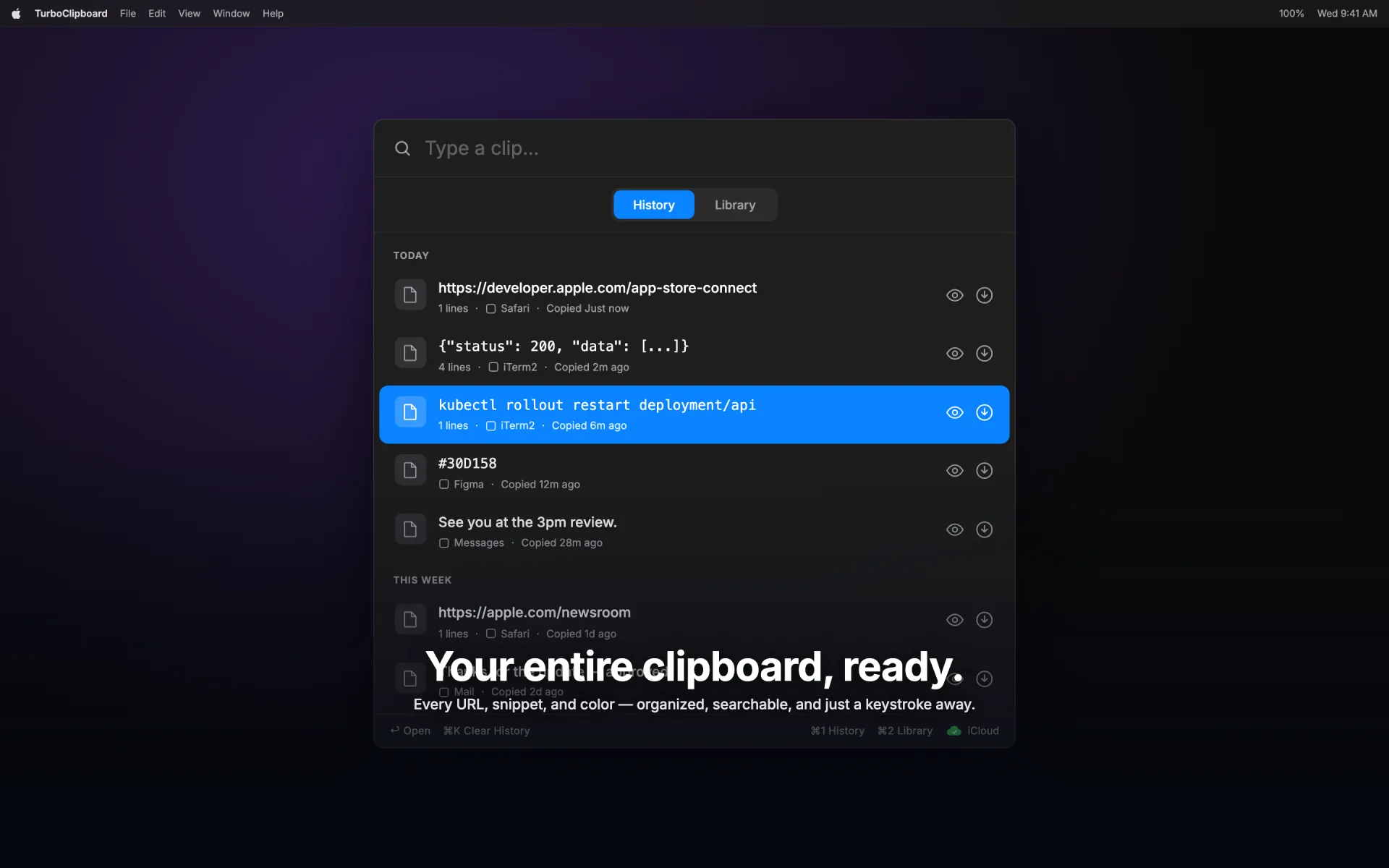
- ✓ Direct paste: press Return to paste the selected clip straight into the app you were using. Choose Paste or Copy as the default; Option-Return runs the other action and Shift-Return pastes as plain text. TurboClipboard posts a Command-V keystroke to paste into the active app.
- ✓ Quick paste: hold Command in the palette to reveal number keycaps, then press 1 through 9 to paste any of the first nine results. Scope switching moved to Control-1 (History) and Control-2 (Library).
- ✓ The palette is now resizable and remembers its size and position, and opens on the display with your pointer. Position can be set to Remember last, Centered, or At pointer.
- ✓ Press Command-K on a clip for a searchable action panel: paste options, preview, smart actions, speak, save to Library, pin, delete, and Clear History or Library.
- ✓ Choose Comfortable or Compact row density.
- ✓ Build named transform pipelines that chain multiple steps, then run them from the Command-K panel, a row’s Copy Transformed menu, or a global keyboard shortcut — and as an Apply Transform Pipeline action in Shortcuts, on Mac and iOS.
- ✓ Transform pipelines can now include on-device Apple Intelligence steps — Proofread, Summarize, Key Points, Make Professional, Make Friendly, and Make Concise — alongside the deterministic text transforms. AI steps run through Apple Foundation Models on-device and appear in the editor when your Mac supports them.
- ✓ On-device semantic search: when keyword matches run out, TurboClipboard fills the remaining results with meaning-based matches computed by an on-device model — nothing is uploaded. Turn it on in Settings under Palette, Search, where it appears only when the model is available on your Mac.
- ✓ Sensitive-clip protection: one-time passcodes, detected secrets, and password-manager copies are flagged, concealed until you hover, and kept on this Mac only. Optional auto-expiry deletes them automatically — one-time codes after 30 seconds, secrets after 60.
- ✓ The palette no longer appears in screen recordings or shared screens.
- ✓ Settings is redesigned with a sidebar layout that stays visible at any window size, replacing the previous tab strip that could collapse into a hard-to-find overflow menu. The Settings window is now resizable.
- ✓ Find any setting with the new Settings search, and see at a glance which settings sync across your devices versus stay on this Mac.
- ✓ New controls: per-app "always paste as plain text" rules, browse Applications to exclude apps that are not running, an Unlimited retention option, and a clear view of built-in password-manager protection.
- ✓ The iOS keyboard now saves as well as pastes: tap Clipboard to keep whatever you just copied, or select text in the field and tap Selection — without leaving the app you’re in. Both save into your encrypted library, and anything that looks like a password or key is refused when Auto-Exclude Detected Secrets is on. Your clipboard is only ever read when you tap; never when the keyboard opens, and never while you type.
- ✓ The keyboard’s search field now uses the same fuzzy ranking as the Mac palette and the iOS app, instead of plain substring matching.
- ✓ iPhone and iPad now categorize and summarize clips on-device at capture, showing category badges and summaries on rows — matching the Mac.
- ✓ iOS gains fuzzy search that mirrors the Mac palette’s ranking, browsing of your synced smart folders, and editing of saved clips — text, tags, and pin.
- ✓ New iOS Shortcuts actions let you save, search, transform, and paste clips from the Shortcuts app and Siri, including an Apply Transform Pipeline action that runs your saved pipelines — AI steps included.
- ✓ iPad hardware-keyboard shortcuts: Command-1 and Command-2 switch the sidebar between Library and History, Command-comma opens Settings, and the compact tab layout adds Command-1/2/3 tab switching. Rows, pinned cards, and sidebar buttons gain a pointer hover effect for trackpad and Magic Keyboard.
- ✓ Accessibility: TurboClipboard honors Reduce Motion by skipping the copy-confirmation pulse, and a device stuck waiting on the iCloud Keychain key can now continue locally with a Use Without Sync escape hatch.
- ✓ Images now stay on the capturing Mac by default. Each image can be explicitly opted into encrypted sync from its row menu, with a confirmation that image assets can use substantially more iCloud storage than text clips.
- ✓ Exact-byte image fingerprints make duplicate rejection reliable across image eviction and app relaunches. For synced images, the fingerprint is carried inside the encrypted payload rather than exposed as plaintext CloudKit metadata.
- ✓ Backup export now takes an isolated image snapshot, includes readable images up to a combined 128 MB, and reports unreadable images separately from images skipped after reaching the limit.
- ✓ Sync recovery now quarantines damaged image sidecars and repairs recoverable assets after foregrounding or relaunch, while destructive reset operations finish in order before new writes resume.
- ✓ Plus first-run onboarding, direct menu bar icon access, System/Light/Dark appearance across Mac and iOS, clear-History on quit/sleep/lock, text-to-speech, and easier iOS template creation with Add Variable.